
Deploy Community Edition on a Cloud Server with aaPanel
If you want your colleagues, students, or clients to scan a QR code to fill out surveys, we recommend deploying SurveyKing to a cloud server. Cloud servers have public IP addresses, which are necessary for users outside your network to access the system when scanning a QR code.
Why Can't People Open the Scan?
A QR code is essentially just a URL. Whether someone can open it depends on whether they can access that URL.
Here are common reasons why people might not be able to open the scan:
| Link You See | Why Others Might Not Be Able To Open It |
|---|---|
http://localhost:1991/... | localhost only refers to your local machine. When someone scans with their phone, they are trying to access their own phone, not your computer. |
http://127.0.0.1:1991/... | 127.0.0.1 also refers to your local machine and is inaccessible from external devices. |
http://192.168.x.x:1991/... | This is a local network address, typically accessible only by users on the same Wi-Fi or internal network. |
| Temporary deployment address on your computer | If your computer shuts down, goes to sleep, loses internet connectivity, or if a firewall blocks access, the scan will fail. |
After deploying to a cloud server, the link becomes:
http://server_public_ip:1991/...
Or, after binding a domain name, it becomes:
https://your_domain/...
These addresses are suitable for providing to external users for scanning and submitting.
Before generating survey links or QR codes, open the SurveyKing admin console at http://server_public_ip:1991 or your domain name. Do not open the admin console using localhost and then copy the link.
Who is this for?
- You need to distribute surveys to company employees, students, clients, or external users.
- You don't want to keep your computer running constantly.
- You want a more stable link that you can later bind to a domain name and HTTPS.
- You are not familiar with the command line and prefer using aaPanel for deployment.
If you only need to test SurveyKing on your own computer, first see Windows One-Click Deployment.
Operation Steps
Purchase a Tencent Cloud server
  -> Select a Linux operating system
  -> Log in to the server
  -> Install aaPanel
  -> Deploy SurveyKing in aaPanel
  -> Access it through the public IP address or a domain name
Detailed Steps
1. Purchase a Tencent Cloud Server
Open the following Tencent Cloud purchase link:
Tencent Cloud Server Purchase Link (the cheapest annual plan of 99 yuan is sufficient to run the current system)
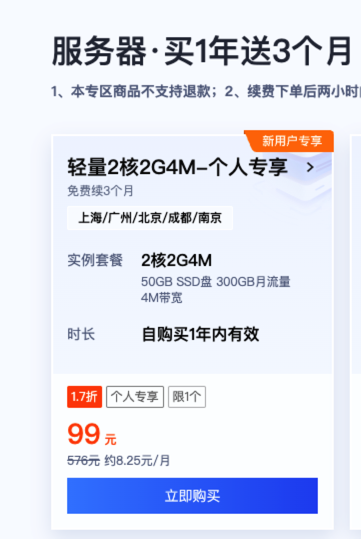
When purchasing, you can select the following options:
| Configuration Item | Recommendation |
|---|---|
| Region | Choose a region closer to your primary users |
| Server Type | Recommended lightweight application server for ease of use |
| CPU / Memory | Trial option 2 vCPU, 2 GB RAM, formal use recommends 2 vCPU, 4 GB RAM or higher |
| Disk Space | Recommend 40GB or larger |
| Bandwidth | Trial option 3 Mbps initially, increase as needed based on the number of users |
| Login Method | Set a complex password and save it |
2. Prioritize Using an Application Template
When creating a server, if there is an Application Template on the page, we recommend selecting:
Application Templates -> Website Scenarios -> aaPanel Linux Panel

This creates a server with aaPanel preinstalled, allowing you to skip the "Install aaPanel" step and go directly to "Open aaPanel."
Tencent Cloud also has official documentation that you can refer to: Installing and Configuring aaPanel Linux Panel Tencent Cloud Exclusive Edition.
The Tencent Cloud documentation also mentions selecting Application Template > Website Scenario > aaPanel Linux Panel on the lightweight application server purchase page. If this is your first deployment, choosing this option is the easiest approach.
3. Choose a Linux Operating System (Do Not Select Windows)
Select a Linux operating system. Do not select Windows.
We recommend:
Ubuntu 22.04 LTS 64-bit
If Ubuntu 22.04 is not available, you can choose other common Linux distributions such as Debian, OpenCloudOS, or TencentOS Server.
Do not select images that already have many runtime environments preinstalled. aaPanel works best on a clean system where the environment is managed by aaPanel.
If you selected the aaPanel Linux Panel application template in step 2, you can skip this step.
4. Record Server Information
After purchasing, find the server in the Tencent Cloud console and record:
| Information | Purpose |
|---|---|
| Public IP | Accessing SurveyKing system |
| Login Account | Usually root or the account specified on the page |
| Login Password | Used for SSH login to the server |
If you forget your password, you can reset the instance password in the Tencent Cloud console.
5. Allow Security Group Ports
Go to the Security Groups or Firewall section of the Tencent Cloud console and allow the following ports:
| Port | Purpose |
|---|---|
22 | SSH login to the server |
| Panel port prompted by aaPanel installation | Open the aaPanel panel |
1991 | Access SurveyKing system |
80 / 443 | Used for binding a domain name and HTTPS later |
If you are only testing initially, allow ports 22, the aaPanel port, and 1991.
If the cloud server's security group does not allow ports, the services inside the server may be inaccessible even if they have started. This is a common problem for new users.
6. Log in to the Server
You can click Login in the Tencent Cloud console to enter the server using the web terminal.
Alternatively, you can execute the following command in your computer's terminal:
ssh root@server_public_ip
Replace server_public_ip with your own public IP address.
7. Install aaPanel
Copy and paste the following command into the server terminal:
if [ -f /usr/bin/curl ];then curl -sSO https://download.bt.cn/install/install_panel.sh;else wget -O install_panel.sh https://download.bt.cn/install/install_panel.sh;fi;bash install_panel.sh ed8484bec
During installation, enter:
y
when prompted to confirm.
After installation is complete, the terminal will display the aaPanel address, username, and password. Save this information.
The aaPanel installation command may be updated. For the latest command, refer to the aaPanel official quick installation documentation.
If you selected the aaPanel Linux Panel application template when creating the server, you can skip this step.
8. Open aaPanel
Open the aaPanel address displayed after installation in your browser.
If it cannot be opened, first check:
- Whether the Tencent Cloud security group allows the aaPanel port.
- Whether the system firewall allows the aaPanel port.
- Whether the panel address is complete, including the port and security access point.
After entering aaPanel for the first time, bind a aaPanel account as prompted on the page. Skip the basic environment setup initially and install SurveyKing according to the prompts when deploying.
If you are using the Tencent Cloud aaPanel Linux Panel application template, you can also view the aaPanel information in Application Management on the server details page and log in to aaPanel as prompted.
9. Deploy SurveyKing
After entering aaPanel, continue with the steps outlined in Simple Deployment of Open Source Edition.
After deployment is complete, access SurveyKing using:
http://server_public_ip:1991
If you see a /setup page when opening for the first time, complete initialization according to Initialization, Backup and Upgrade.
10. Generate a Scannable Link
Open the SurveyKing admin console using the following address:
http://server_public_ip:1991
Then go to the survey publishing page and copy the link or QR code.
Do not copy the QR code after opening the admin console on your server's local machine or your own computer using http://localhost:1991. The generated link may still be a localhost address, preventing others from scanning it.
Subsequent Domain Binding
If you don’t want users to see the IP address, purchase a domain name and resolve it to the server's public IP address.
The basic process is:
Purchase a domain name
  -> Add an A record that points to the server's public IP address
  -> Bind the domain name in aaPanel
  -> Configure an SSL certificate
  -> Users visit https://your_domain
For long-term external access to domestic cloud servers, you typically need to complete ICP filing. You can skip this step when testing with just a public IP address.
Common Questions
Why can I open it, but others cannot scan and open it?
First, check if the link in the QR code is localhost, 127.0.0.1, or 192.168.x.x.
If so, it's normal for them not to be able to open it. Please use http://server_public_ip:1991 to open the admin console and then re-copy the survey link or QR code.
I bought a cloud server, but still can't open http://server_public_ip:1991?
Check in order:
- Whether the Tencent Cloud security group allows port
1991. - Whether the server system firewall allows port
1991. - Whether the SurveyKing application is running on the server.
- Whether the IP address and port in the browser address are entered correctly.
Do I have to buy a cloud server?
Not necessarily.
If you only need to test it yourself or allow users on the same office or Wi-Fi network to use it, you can first use Windows One-Click Deployment or local area network access.
If you want to distribute surveys for external users to scan and fill out, a cloud server is the most convenient option.
Will shutting down the server affect survey access?
Yes. If the cloud server shuts down, experiences service interruption, or if the SurveyKing application stops running, the survey link will not be accessible.