
AI Smart Creation Guide
Introduction
SurveyKing Community Edition integrates the AI smart creation feature, allowing you to quickly create questionnaires and exams through natural language conversations. You don't need to manually add questions one by one; simply describe your needs, and the AI will automatically generate professional questionnaire content.
Key Features
- 🤖 Conversational Creation: Quickly generate questionnaires through natural language conversations
- 📋 Smart Questionnaires: Supports creating various types of survey questionnaires
- 📝 Smart Exams: Supports automatic generation of exam questions
- ⚙️ Flexible Configuration: Supports customizing AI prompts to adapt to different scenarios
- 🎯 Precise Understanding: Based on large language models, accurately understands user intent
Configuration Steps
Step 1: Register for a SiliconFlow Account
- Visit the SiliconFlow website: https://cloud.siliconflow.cn/i/DxGWM358
- Click the registration button and fill in the registration information
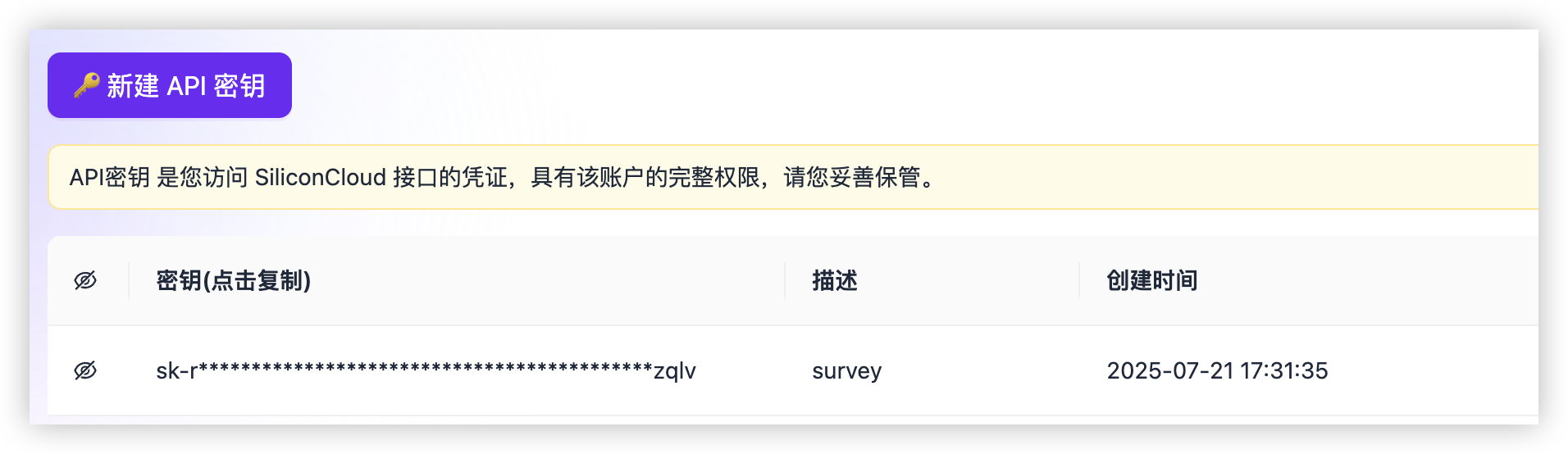
Step 2: Obtain an API Key
- Log in to the SiliconFlow console
- Visit the API key management page: https://cloud.siliconflow.cn/me/account/ak
- Click the "New API Key" button
- Enter a key description (e.g., surveyking-ai)
- Click the "Create New Key" button
- Important: Copy the generated API key and store it securely
Step 3: Configure AI Settings in the System
- Log in to the SurveyKing system using an administrator account
- Go to System Settings > Personal Settings > AI Settings
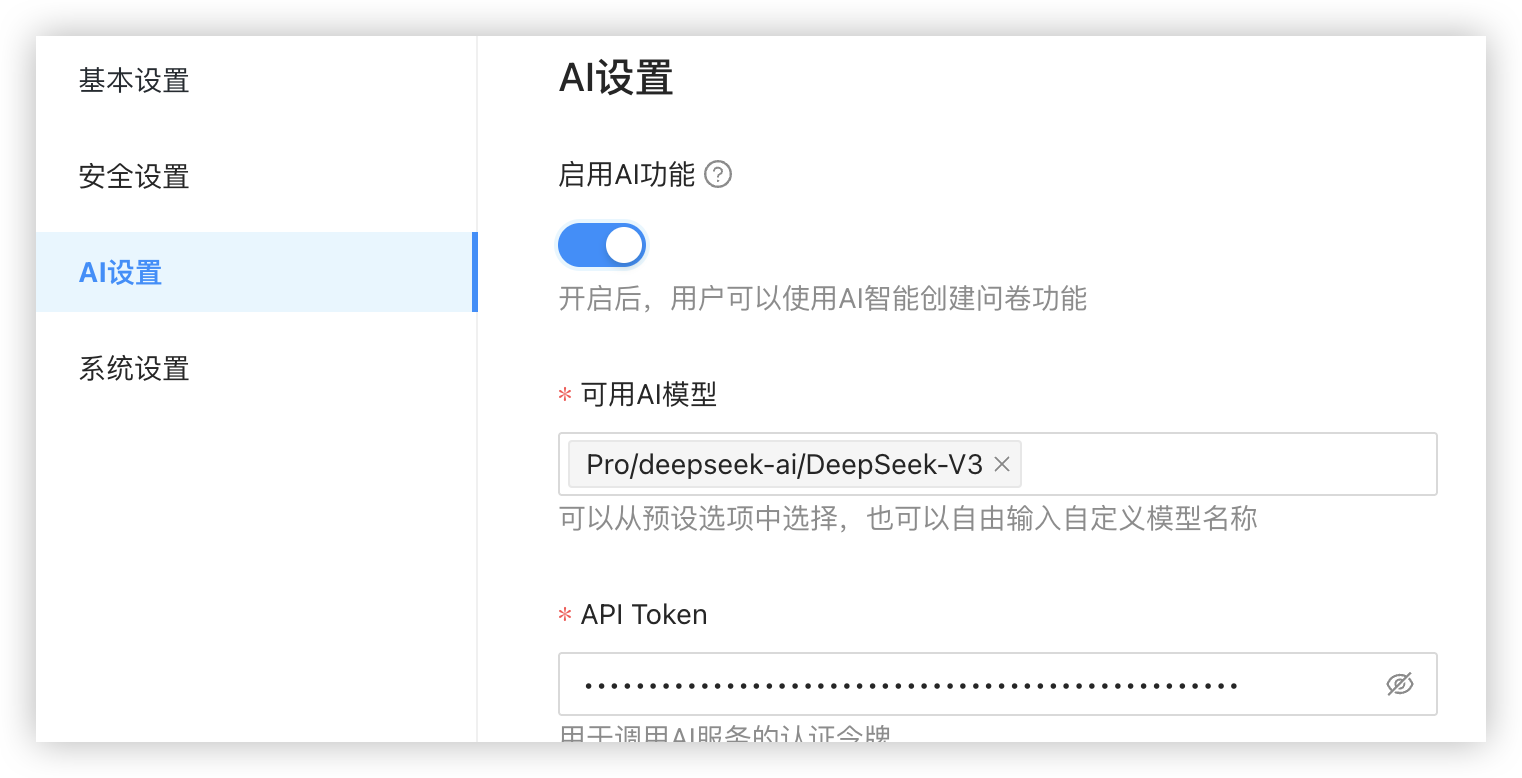
- Configure the following information on the AI settings page:
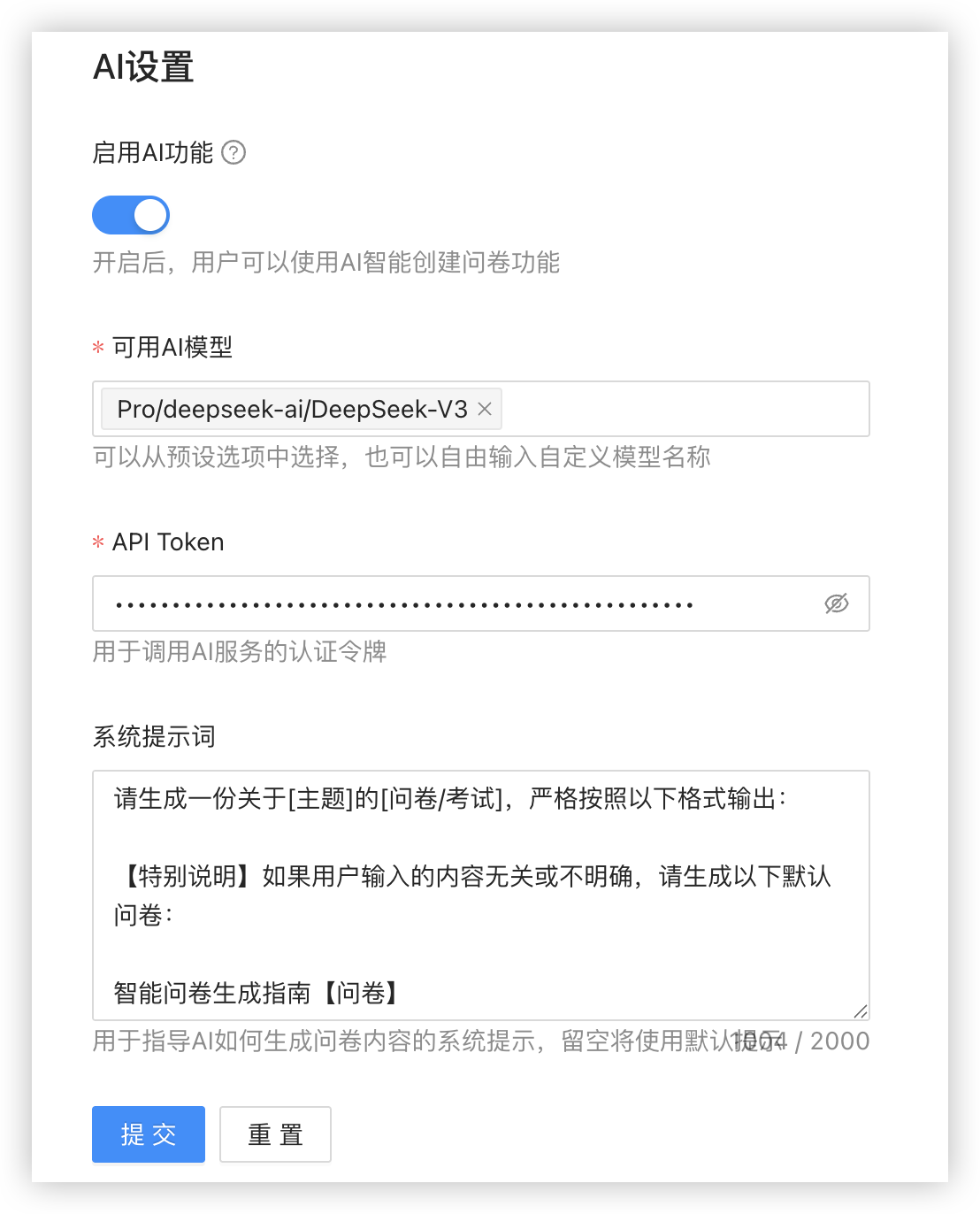
We provide a default prompt for reference only.
Please generate a [questionnaire/exam] about [topic], strictly following the format below:

[Special Instructions] If the user's input is irrelevant or unclear, generate the following default questionnaire:

Smart Questionnaire Generation Guide [Questionnaire]
Hello! Please provide more details so the AI can generate a questionnaire that better meets your needs. You can respond to the following prompts: [Welcome Message]

Who is your target audience? What is the purpose of your research? What should the questionnaire cover? How long should it be? [Text Description]

[When generating a questionnaire] Format requirements:
1. Add the [Questionnaire] tag after the questionnaire title
2. Add the [Welcome Message] tag after the welcome message
3. Label every question with its type: [Single Choice], [Multiple Choice], [Fill in the Blank], [Cascading], [Multiple Blanks], [Signature], [True/False], or [Text Description]
4. List choice options directly without A, B, or C labels
5. Fill-in-the-blank, signature, and text description questions do not need options
6. Cascading question format: put the option headings on the first line separated by spaces, then list each option combination on a separate line
7. Multiple-blanks format: put one blank label on each line

[When generating an exam] Format requirements:
1. Add the [Exam] and [Welcome Message] tags after the exam title
2. Put the welcome message directly below the title line
3. Format every question as: Question content (points) [Question Type]
4. Supported types: [True/False], [Single Choice], [Multiple Choice], and [Fill in the Blank]
5. List choice and true/false options directly, and add (Correct Answer) after the correct option
6. End every question with "Answer Explanation: xxxx"
7. Do not label options with A, B, or C

[Questionnaire] Output example:
[Questionnaire Title] [Questionnaire]
[Welcome Message Content] [Welcome Message]

[Question 1] [Single Choice]
Option 1
Option 2
Option 3

[Question 2] [Multiple Choice]
Option 1
Option 2
Option 3

[Question 3] [Fill in the Blank]

[Question 4] [Cascading]
State City County
California Los Angeles Los Angeles County
California San Francisco San Francisco County
New York New York City New York County

[Question 5] [Multiple Blanks]
Name
Age
Phone
Email

[Question 6] [Signature]

[Question 7] [True/False]
True
False

[Question 8] [Text Description]

[Exam] Output example:
[Exam Title] [Exam] [Welcome Message]
[Welcome Message Content]

Question content (10 points) [True/False]
Option 1 (Correct Answer)
Option 2
Answer Explanation: xxxx

Question content (15 points) [Single Choice]
Option 1
Option 2 (Correct Answer)
Option 3
Answer Explanation: xxxx

Question content (20 points) [Multiple Choice]
Option 1 (Correct Answer)
Option 2
Option 3 (Correct Answer)
Answer Explanation: xxxx

Question content (5 points) [Fill in the Blank]
Answer Explanation: xxxx

Please generate [specific requirements, such as the number of questions and topics to cover]
Configuration Item Description:
- API Key: Paste the API key obtained from SiliconFlow
- Prompt: You can customize the AI behavior prompt, for example:
You are a professional questionnaire design assistant who can create high-quality questionnaires and exam questions based on user needs.
Generate appropriate questions according to the user's description, ensuring that the questions are clear, accurate, and consistent with the survey purpose.
- Click the "Save" button to complete the configuration
⚠️ Note: Please ensure the security of your API key and do not disclose it to others.
How to Use the AI Creation Feature
Start AI Creation
- After configuration, click "New Questionnaire" on the questionnaire list page
- You will see a new AI smart creation option
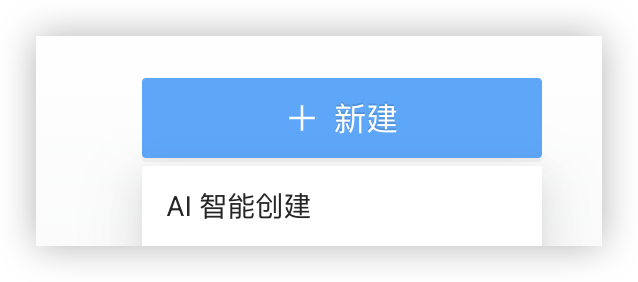
- Click the AI Smart Creation button
AI Conversational Creation Process
- After entering the AI conversation page, you will see the intelligent assistant's welcome interface
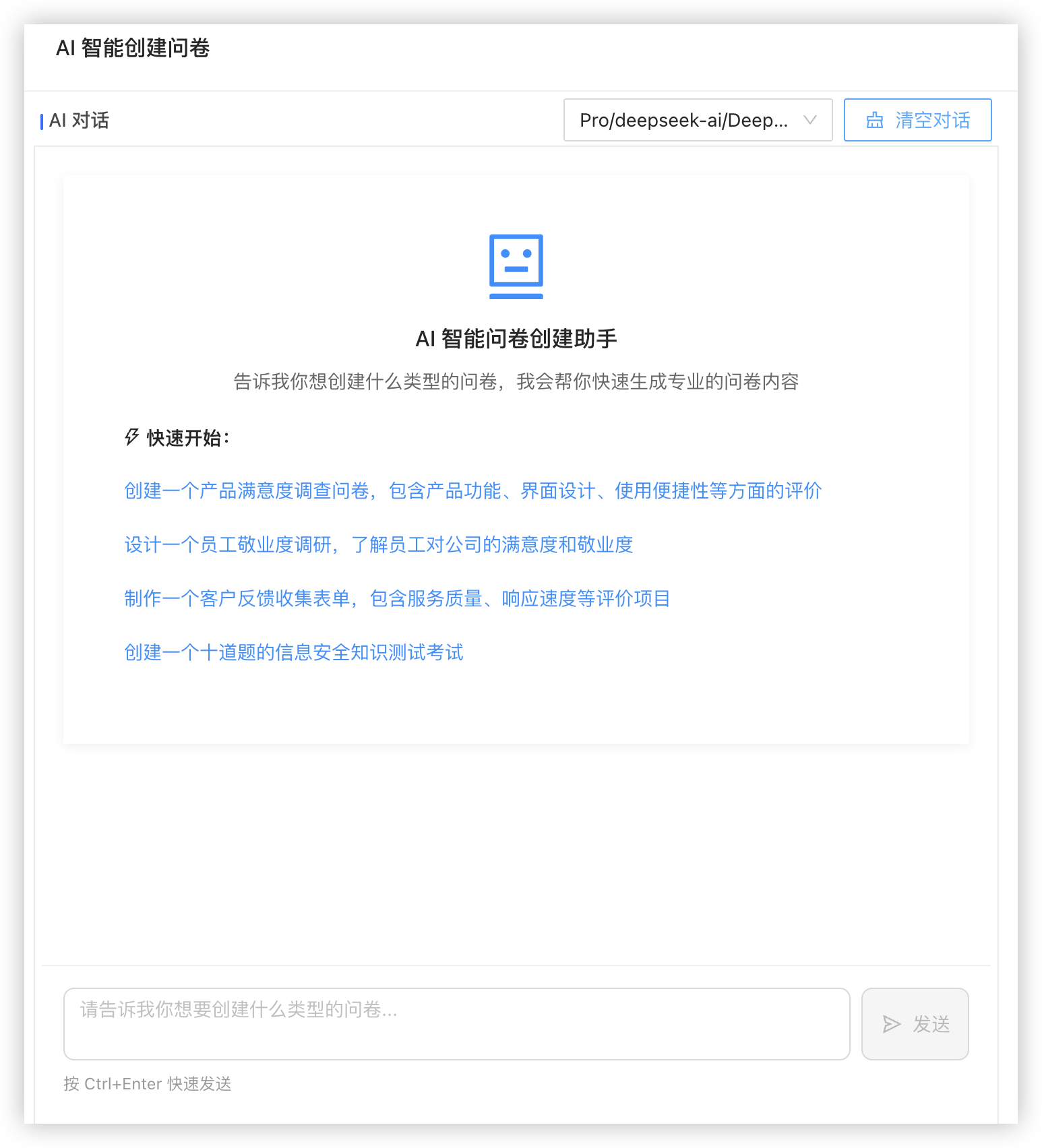
- In the dialog box, describe your needs, for example:
- "Help me create a questionnaire to understand employee satisfaction"
- "I need a questionnaire for product experience feedback, including 5-8 questions"
- "Create an exam on basic programming knowledge, including multiple choice and short answer questions"
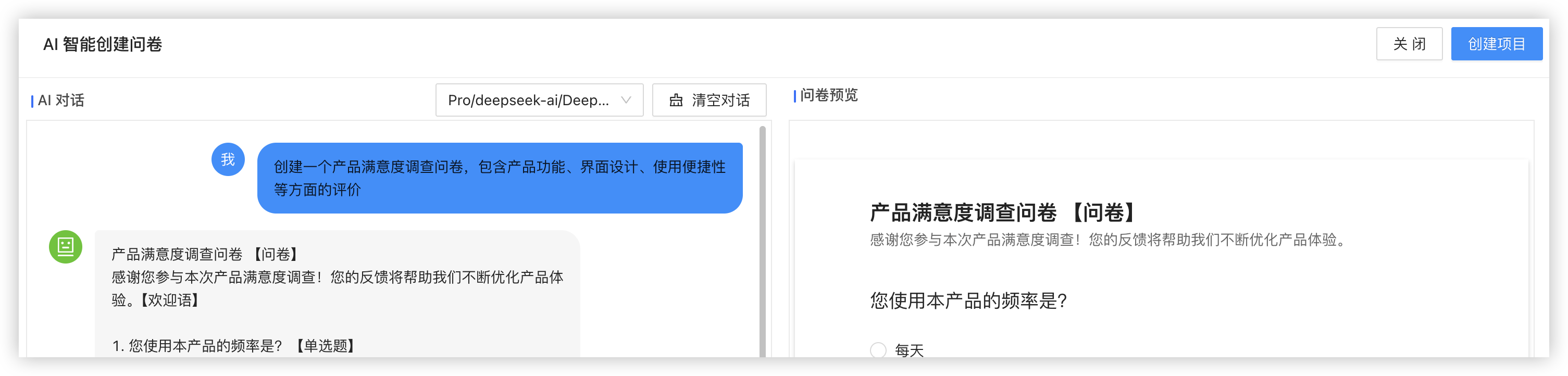
-
The AI will generate corresponding questionnaire content based on your description
-
You can continue to converse with the AI, requesting modifications or improvements to the questionnaire:
- "Add a question about salary satisfaction"
- "Change the third question to multiple choice"
- "There are too few questions, add some more questions"
Complete Creation
- When you are satisfied with the questionnaire generated by the AI, click the "Confirm Creation" button
- The system will automatically save the questionnaire and jump to the questionnaire editing page
- You can continue to manually adjust the details of the questionnaire
Usage Tips
Questioning Techniques
To achieve better AI creation results, it is recommended:
-
Clear Objectives: Clearly state the purpose and use of the questionnaire
- ✅ Good description: "Create a questionnaire to understand user satisfaction with a new product feature"
- ❌ Bad description: "Just create a questionnaire"
-
Specify Type: State the type of questionnaire you need
- Survey questionnaires, satisfaction surveys, feedback forms
- Knowledge tests, skill assessments, onboarding exams
-
Quantity Requirements: Specify the approximate number of questions
- "Include 8-10 questions"
- "A short questionnaire, around 5 questions"
-
Question Type Preferences: State the desired question types
- "Mostly multiple choice questions, including 1-2 open-ended questions"
- "Half multiple choice and half single choice"
Common Application Scenarios
- Employee Surveys: Employee satisfaction, work environment assessment, training effectiveness survey
- Customer Feedback: Product experience, service quality, purchase intent survey
- Market Research: Consumer habits, brand awareness, demand analysis
- Education Exams: Knowledge testing, skill evaluation, learning effect inspection
- Activity Evaluation: Meeting feedback, training evaluation, activity satisfaction
Precautions
- Network Connection: Ensure the system can normally access external AI services
- API Quota: Pay attention to the API call quota of the SiliconFlow account to avoid exceeding the limit
- Content Review: The content generated by AI is for reference only and should be adjusted according to actual needs
- Privacy Protection: Sensitive information is not recommended to be generated through AI, please create it manually
Troubleshooting
Common Problems
Q: Why doesn't the AI creation button appear? A: Check if you have correctly configured the API key and whether the current user has AI creation permissions.
Q: Why is the AI response slow or timed out? A: This may be due to network issues or busy API services. Please try again later.
Q: Why does the content generated by AI not meet expectations? A: Try describing your needs more detailedly, or adjust the prompt settings.
Q: The API key is invalid message appears? A: Check if the key has been copied completely and whether the SiliconFlow account is normal.
With the AI smart creation feature, you can significantly improve questionnaire production efficiency and quickly obtain professional questionnaire templates. If you have any questions, please contact technical support.